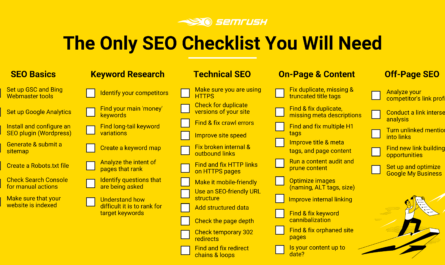
Technical SEO does not need to be mysterious. Most WordPress problems come from a short list of issues: search engines cannot reach a page, the wrong version gets indexed, the site loads too slowly, links break, or important pages send weak signals.
This WordPress technical SEO checklist focuses on fixes that a site owner can check in a clear order. You do not need to change every setting at once. Start with access and indexing. Then fix page structure, speed, mobile issues, and site signals. Finish by checking the site in Google Search Console.
The advice follows the technical guidance published by Google Search Central and the page experience guidance from web.dev. The goal is simple: make the site easy for people to use and easy for search engines to understand.
Before you start: back up the site
Technical changes can affect many pages at once. Create a full backup before changing permalinks, redirects, robots rules, caching, or plugins. If you use managed hosting, confirm that a recent restore point exists.
Also write down the current state. Record your active theme, SEO plugin, cache plugin, sitemap location, and any CDN. This makes troubleshooting much easier if a setting causes a problem.
1. Make sure WordPress is not blocking search engines
WordPress has a setting called “Discourage search engines from indexing this site.” It is useful on staging sites, but it can be harmful if left on after launch.
Go to Settings → Reading. Make sure the search engine visibility box is not checked on a public site.
Real-world check
A small business launches a redesign after testing on a staging domain. The developer copies the site to production but leaves the discourage setting enabled. The pages look normal to visitors, yet search engines receive a noindex signal. A five-second settings check can prevent weeks of confusion.
2. Check whether important pages are indexed
Open Search Console and use the URL inspection tool for your home page, main service pages, and recent articles. Check whether Google can access the page and whether it is indexed.
If a page is not indexed, do not jump straight to “request indexing.” First find the reason. Common causes include noindex tags, blocked crawling, duplicate pages, weak content, server errors, or a new page that has not been discovered yet.
Google’s explanation of how Search works is useful here because crawling, indexing, and serving are different stages.
3. Use one preferred version of the site
A site can be reachable through several versions, such as HTTP and HTTPS or www and non-www. Pick one preferred version and redirect the others to it.
For example, if the main site is https://example.com, requests for http://example.com and https://www.example.com should normally reach the preferred HTTPS version through a proper redirect.
Do not create redirect chains when one direct redirect will work. A clean path is easier to manage.
4. Use HTTPS everywhere
Every public page should load over HTTPS. Check for mixed content, which happens when an HTTPS page loads an image, script, font, or stylesheet over HTTP.
Browsers may block insecure resources. That can break layouts and create a poor user experience. Update old hard-coded HTTP asset links and make sure WordPress Address and Site Address use HTTPS.
5. Keep permalink structure clean and stable
Simple URLs are easier to read and maintain. A common WordPress setup uses the post name, such as /wordpress-seo-checklist/.
Avoid changing existing URLs only to make them shorter. If a published URL must change, add a permanent redirect from the old address to the new one. Update internal links as well.
Avoid dates when they add no value
A date-based URL can make an evergreen guide look old even after an update. News sites may need dates, but many business blogs do not. Choose a structure based on how the site will be maintained.
6. Create and submit an XML sitemap
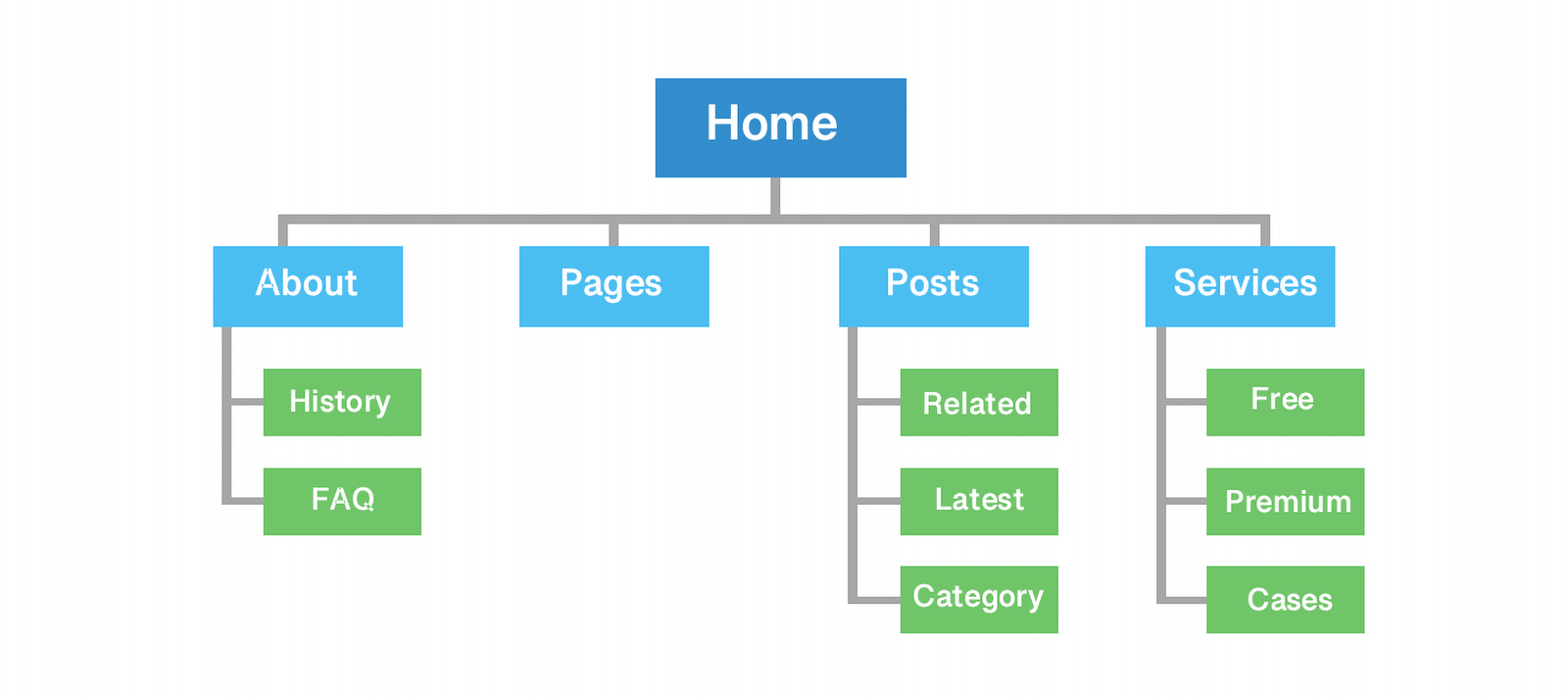
Modern WordPress includes basic sitemap support, and SEO plugins often provide more control. Your sitemap should list the public URLs you want search engines to discover.
Submit the sitemap in Search Console. Then review whether the number of discovered URLs makes sense.
A sitemap is not a command that forces indexing. It is a discovery signal. Pages still need to be accessible and useful.
7. Review robots.txt carefully
The robots.txt file can tell crawlers not to access parts of a site. It is easy to block too much with one broad rule.
Do not block CSS or JavaScript files that are needed to render the page unless you have a clear reason. Search engines need to understand the page much like a browser does.
Important distinction
Robots.txt controls crawling. A noindex directive controls whether a page should appear in search results. Blocking a URL in robots.txt is not a reliable substitute for noindex.
8. Fix accidental noindex tags
SEO plugins let you set pages, categories, tags, and archives to index or noindex. Review these settings after changing themes or SEO plugins.
Pay special attention to:
- Home page
- Main service pages
- Blog posts
- Product pages
- Category archives that provide real value
Do not index every archive by default. Thin tag archives can create many low-value pages. Keep only the archive pages that help users browse useful content.
9. Use canonical URLs to handle duplicates
A canonical URL tells search engines which version you prefer when several URLs contain the same or very similar content.
Most SEO plugins add self-referencing canonicals automatically. Problems appear when a theme, plugin, tracking parameter, or custom setup creates conflicting signals.
Check the source of important pages. Make sure the canonical points to the correct public URL.
Example
An ecommerce page can be opened with sorting parameters such as ?sort=price. If the core product category content is the same, the canonical may point back to the clean category URL. The correct setup depends on the site, so test rather than guessing.
10. Fix broken internal links and 404 pages
Broken links waste the reader’s time and make the site harder to crawl. Run a link check after migrations, slug changes, or large content edits.
For each broken URL, decide what happened:
- If the page moved, redirect to the closest valid replacement.
- If the page was removed and no replacement exists, a 404 can be correct.
- If the link itself is wrong, update the link.
Do not redirect every missing page to the home page. That creates a confusing experience and hides the real problem.
11. Build a clear internal linking structure
Important pages should not be buried five or six clicks deep. A visitor should be able to reach key services, categories, and guides through normal navigation and useful contextual links.
When you publish related content, link it naturally. For example, a general SEO article can link to a focused guide on small business keyword research when the reader needs the next step.
Use descriptive anchor text
“Read our keyword research guide” is more useful than “click here.” The anchor should make sense before the user opens the page.
12. Improve Core Web Vitals without chasing a perfect score
Core Web Vitals measure parts of the real user experience. Use PageSpeed Insights to test important templates.
Start with the largest problems. Common WordPress causes include oversized hero images, too many plugins, unused scripts, slow hosting, heavy page builders, and third-party widgets.
Practical speed order
- Compress large images and serve modern formats when supported.
- Remove plugins you do not need.
- Use page caching.
- Delay non-essential third-party scripts where safe.
- Use a CDN when it solves a real delivery problem.
- Test again after each major change.
Do not break forms, analytics, menus, or checkout functions just to improve a lab score.
13. Optimize images for both speed and meaning
Upload images close to the size needed by the layout. A blog image that displays at 900 pixels wide does not need to be a 6000-pixel camera file.
Use descriptive file names and useful alt text. Alt text should explain the image when that information helps someone who cannot see it. It should not be a place to repeat keywords.
For decorative images, an empty alt attribute may be better than meaningless text.
14. Check mobile usability on real devices
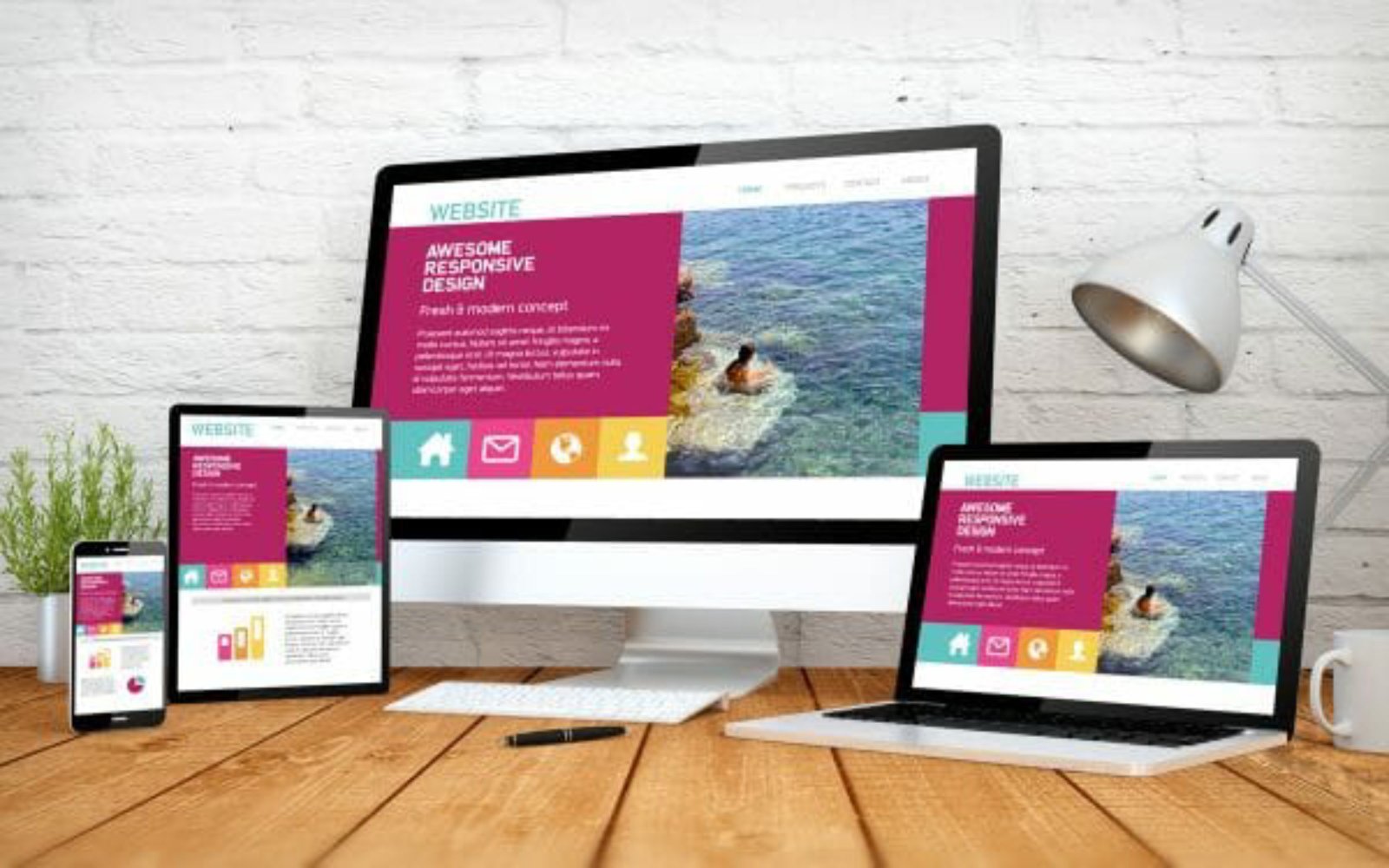
A desktop layout can look fine while the mobile version has tiny text, overlapping buttons, wide tables, or intrusive popups.
Test at least the home page, article template, contact page, and any conversion page on a real phone. Rotate the device. Open menus. Complete forms. Tap buttons. Check tables and images.
Simple mobile design often performs better than a layout filled with effects that add little value.
15. Keep heading structure logical
The post title is normally the main H1. Use H2 headings for major sections and H3 headings for subsections.
Do not choose headings only because of font size. Their main job is to describe the structure of the page.
A clear structure helps readers scan a long article and makes editing easier.
16. Add structured data only when it matches visible content
Structured data can help search engines understand certain types of content. Many SEO plugins can add basic schema for articles, organizations, breadcrumbs, and other supported types.
Use markup that matches what the visitor can actually see. Follow the current Google structured data documentation instead of copying old schema templates from random tutorials.
Test after changes
Use Google’s Rich Results Test when the page uses supported structured data. Fix invalid required properties before relying on the markup.
17. Control thin archives and duplicate WordPress pages
WordPress can create author, date, tag, category, attachment, search, and pagination URLs. Not every archive needs to be indexed.
Ask one question: does this page help a visitor find useful content?
A well-managed category archive can be useful. A tag archive with one post and no unique description may not be. Keep the structure intentional.
18. Monitor Search Console after each major change
Technical SEO is not a one-time setup. Check Search Console after migrations, theme changes, large plugin updates, permalink changes, and major content work.
Review:
- Indexing reports
- Sitemaps
- Manual actions
- Security issues
- Search performance
- Core Web Vitals
If traffic changes, compare the timing with site changes before assuming an algorithm update caused the problem.
A priority plan for a small WordPress site
If you only have a few hours, use this order:
| Priority | Task | Why it matters |
|---|---|---|
| 1 | Check index/noindex and search visibility | A blocked site cannot rank normally |
| 2 | Confirm HTTPS and preferred domain | Prevents split or insecure versions |
| 3 | Submit sitemap and inspect key URLs | Helps discovery and diagnosis |
| 4 | Fix broken links and redirects | Improves navigation and crawling |
| 5 | Optimize large images and caching | Improves user experience |
| 6 | Review canonicals and archives | Reduces duplicate signals |
| 7 | Add useful internal links | Connects related pages |
Technical SEO mistakes that cause avoidable problems
Installing several plugins that do the same job
Two SEO plugins or several cache plugins can create conflicting settings. Use one clear tool for each job unless you have a tested reason to combine them.
Changing permalinks without redirects
Old links may already be shared, bookmarked, or indexed. Redirect important old URLs when the destination changes.
Blocking a staging site in the wrong way
A public staging copy can create duplicate content. A private staging environment is safer than relying only on a robots rule.
Assuming a sitemap fixes poor content
A sitemap can help discovery. It cannot make a weak page useful. Technical SEO and content quality work together.
Trying every speed optimization at once
Change one major setting at a time. Test the site. This makes it easier to find the cause if something breaks.
Technical SEO checklist for monthly maintenance
- Check Search Console for new indexing errors.
- Test a few important URLs with URL inspection.
- Review 404 logs and broken internal links.
- Test home, article, and conversion pages on mobile.
- Check large new images.
- Review plugin and theme updates.
- Confirm backups are working.
- Check page speed after major design changes.
- Review sitemap health.
- Watch for unexpected noindex or canonical changes.
Frequently asked questions
Do I need a technical SEO plugin for WordPress?
You need a reliable way to manage common SEO settings, but you do not need many overlapping plugins. A well-supported SEO plugin can handle titles, descriptions, canonicals, sitemaps, robots settings, and basic schema.
How often should I run a technical SEO audit?
For a small site, a light monthly check and a deeper review every few months is often enough. Run an extra audit after a redesign, migration, or major plugin change.
Does a fast site automatically rank higher?
No. Speed is one part of the user experience. A fast page still needs useful content, clear intent, good site structure, and trustworthy information.
Should every category and tag archive be indexed?
No. Index only archives that help users browse meaningful groups of content. Thin or duplicate archives can be kept out of search when they add little value.
Can Search Console fix indexing issues for me?
Search Console helps you find and understand issues. You still need to fix the underlying problem on the site.
Conclusion: fix access first, then improve experience
The best technical SEO work follows a clear order. First make sure search engines can reach and index the right pages. Then clean up domain versions, redirects, canonicals, sitemaps, and internal links. After that, improve speed, mobile usability, images, and structured data.
Do not treat technical SEO as a hunt for a perfect audit score. The real goal is a site that works well, loads reliably, gives clear signals, and helps visitors complete their task. Use this checklist as a maintenance routine, and verify important changes with Search Console rather than relying on assumptions.