Google Search Console for Beginners: A Practical Small Business Guide
Google Search Console is one of the most useful free tools for anyone who manages a website. It shows how Google sees your site and how people find it in search. You can use it to spot indexing problems, see which queries bring impressions, find pages that attract clicks, and monitor technical issues that may affect visibility.
The tool can look complex at first because it contains several reports. You do not need to learn everything on day one. A small business can get real value by understanding a few core sections and checking them on a simple schedule.
This guide explains Google Search Console in plain English. It focuses on the reports that help you make practical SEO decisions. You will learn what to check, what the numbers mean, and what to do when something looks wrong.
1. What Google Search Console Is
Google Search Console is a service from Google that helps website owners understand search performance and technical search status. It does not replace an analytics platform. Instead, it focuses on how your site appears and performs in Google Search.
Search Console can show:
- Search queries that trigger your pages
- Clicks and impressions from Google Search
- Average position and click-through rate
- Which pages are indexed
- Why some pages are not indexed
- Sitemaps submitted to Google
- Core Web Vitals signals
- Manual actions and security issues
For a small business, these reports can answer very practical questions. Are people finding the site? Which topics attract interest? Is Google able to index important pages? Which pages need better titles or stronger content?
2. Set Up the Right Property
Search Console supports different property types. A domain property usually covers all versions of a domain, including HTTP, HTTPS, and subdomains. A URL-prefix property covers only the exact prefix you add.
Choose the setup that matches your site
If you control DNS, a domain property gives broad coverage. If DNS access is not available, a URL-prefix property may be easier. Follow the verification steps shown by Google. Verification proves that you control the website.
Do not create many duplicate properties unless you have a clear reason. Too many versions can make reports harder to compare.
3. Understand the Performance Report
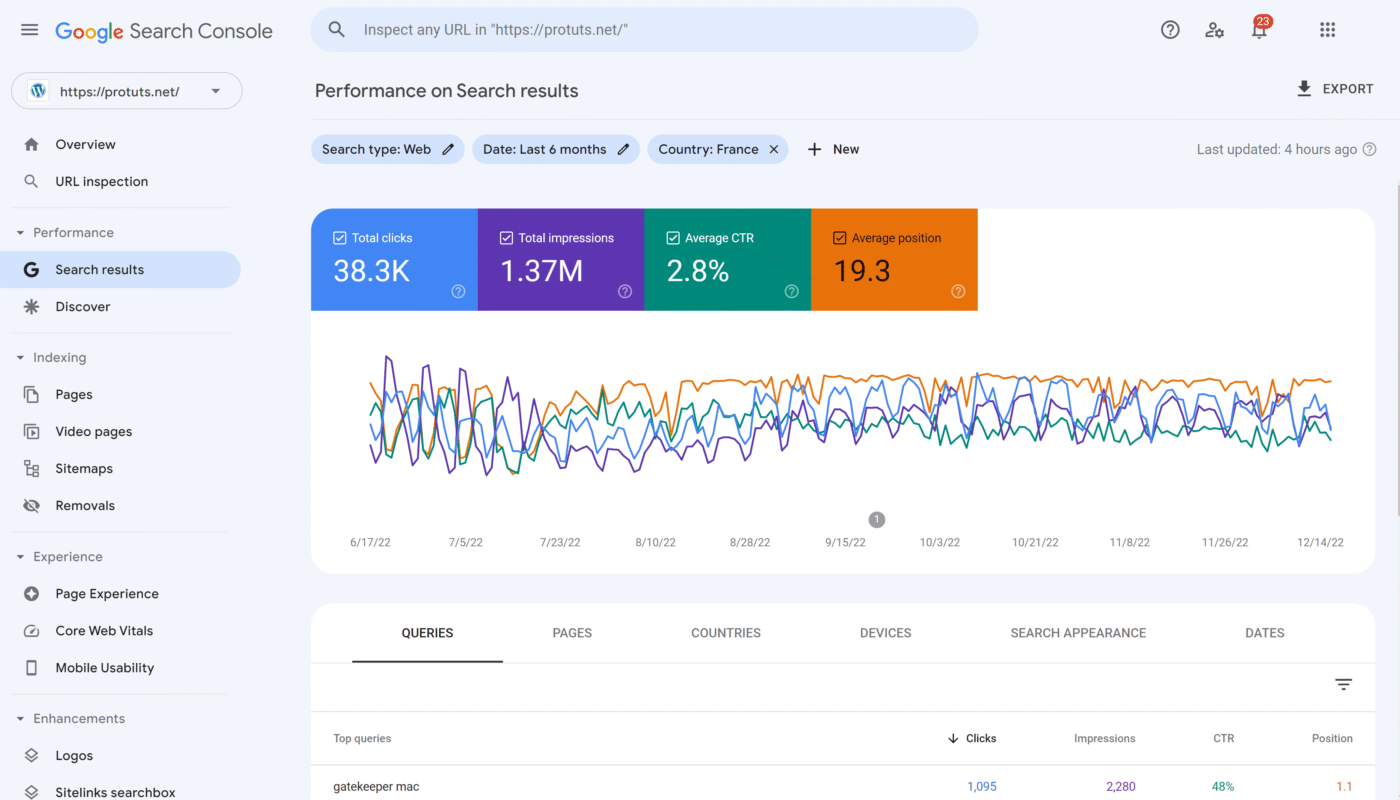
The Performance report is where many beginners should spend most of their time. It shows how your site performs in search results.
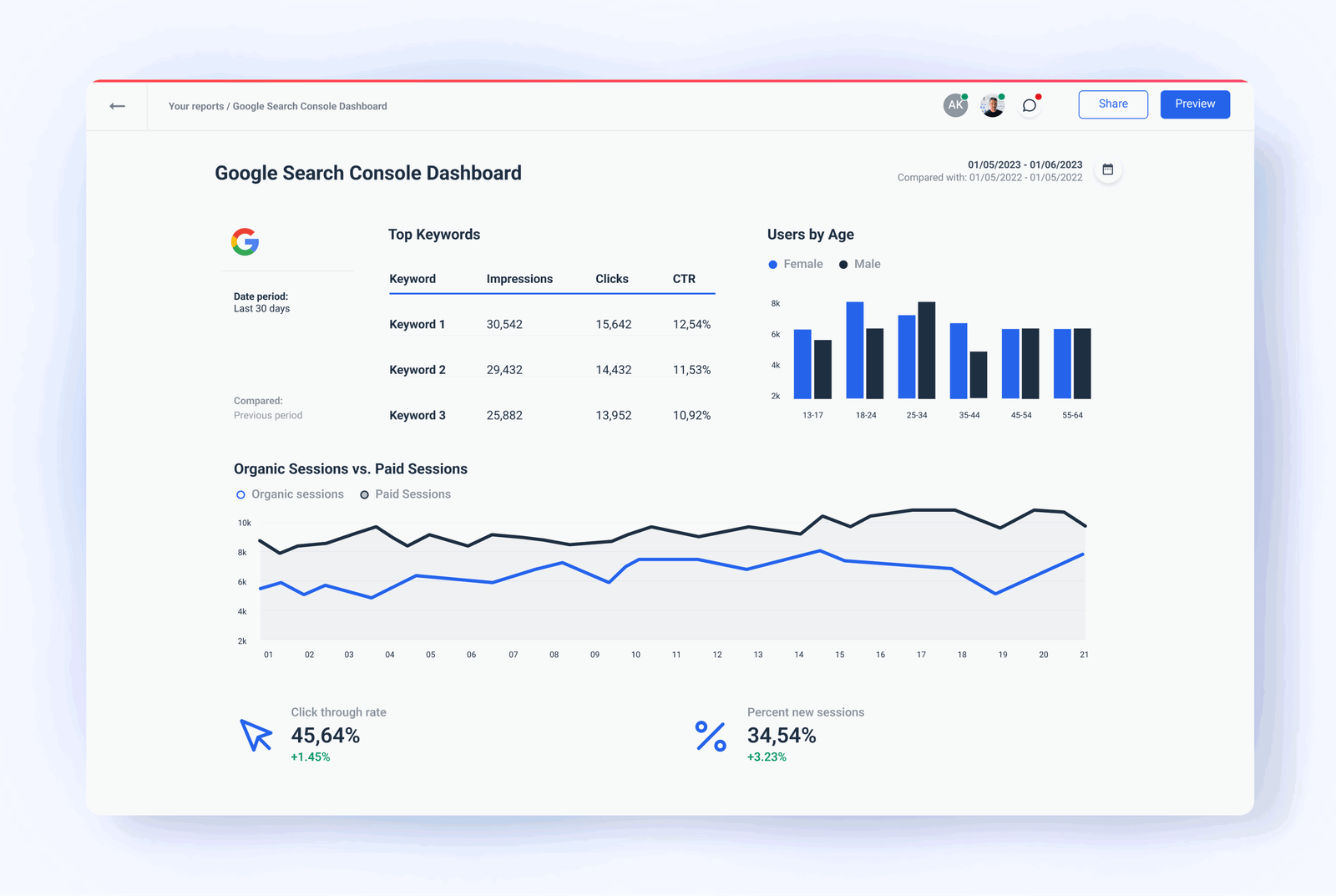
The main metrics are clicks, impressions, average click-through rate, and average position.
Clicks
A click means a person clicked a result that led to your website. This is one of the clearest signs that search visibility is producing actual visits.
Impressions
An impression means your result appeared in a search result. A page can receive impressions without clicks. That can still be useful because it shows Google sees the page as relevant for certain searches.
Click-through rate
Click-through rate, or CTR, is the share of impressions that turned into clicks. A low CTR does not always mean a problem. Search position, query type, rich results, brand familiarity, and search intent all affect it.
Average position
Average position gives a rough view of where your result appeared. Treat it as a trend, not a perfect rank tracker. One page can appear in different positions for different users, devices, and queries.
4. Use the Queries Report to Find Real Search Language
The Queries tab shows words and phrases people used when your site appeared in search. This is valuable because it gives you real audience language rather than guesses.
Look for three kinds of opportunities:
- Queries with strong impressions and few clicks
- Queries that match your topic but are not well covered
- Unexpected queries that reveal a useful new subtopic
Example
Imagine a bakery has a page about custom birthday cakes. Search Console shows impressions for “eggless custom birthday cake near me.” If the bakery really offers eggless cakes but barely mentions them, the page can be improved with a clear section that explains that option.
Do not add a phrase just because it appears in the report. Add it only when it matches the real service and helps the reader.
5. Review the Pages Report
The Pages tab inside Performance shows which URLs receive search impressions and clicks. Sort by clicks or impressions. This helps you see which pages carry most of your organic visibility.
Find pages with room to improve
A page with high impressions but weak clicks may need a clearer title or better alignment with search intent. A page with good clicks that has not been updated in a long time may deserve a content refresh before it loses accuracy.
Compare similar periods rather than reacting to a single day. Search traffic can change because of seasonality, news, demand, or normal variation.
6. Filter by Country, Device, and Search Appearance
Filters help you understand context. A local business can compare performance in its main country. A site with many mobile users can check whether certain pages perform differently on phones and desktop.
Use filters to answer a specific question. Do not create dozens of views just because the options exist.
Useful small business questions
- Which queries bring mobile users?
- Which pages are visible in the main target country?
- Did a recent page update improve clicks?
- Are branded searches increasing?
7. Check the Indexing Report
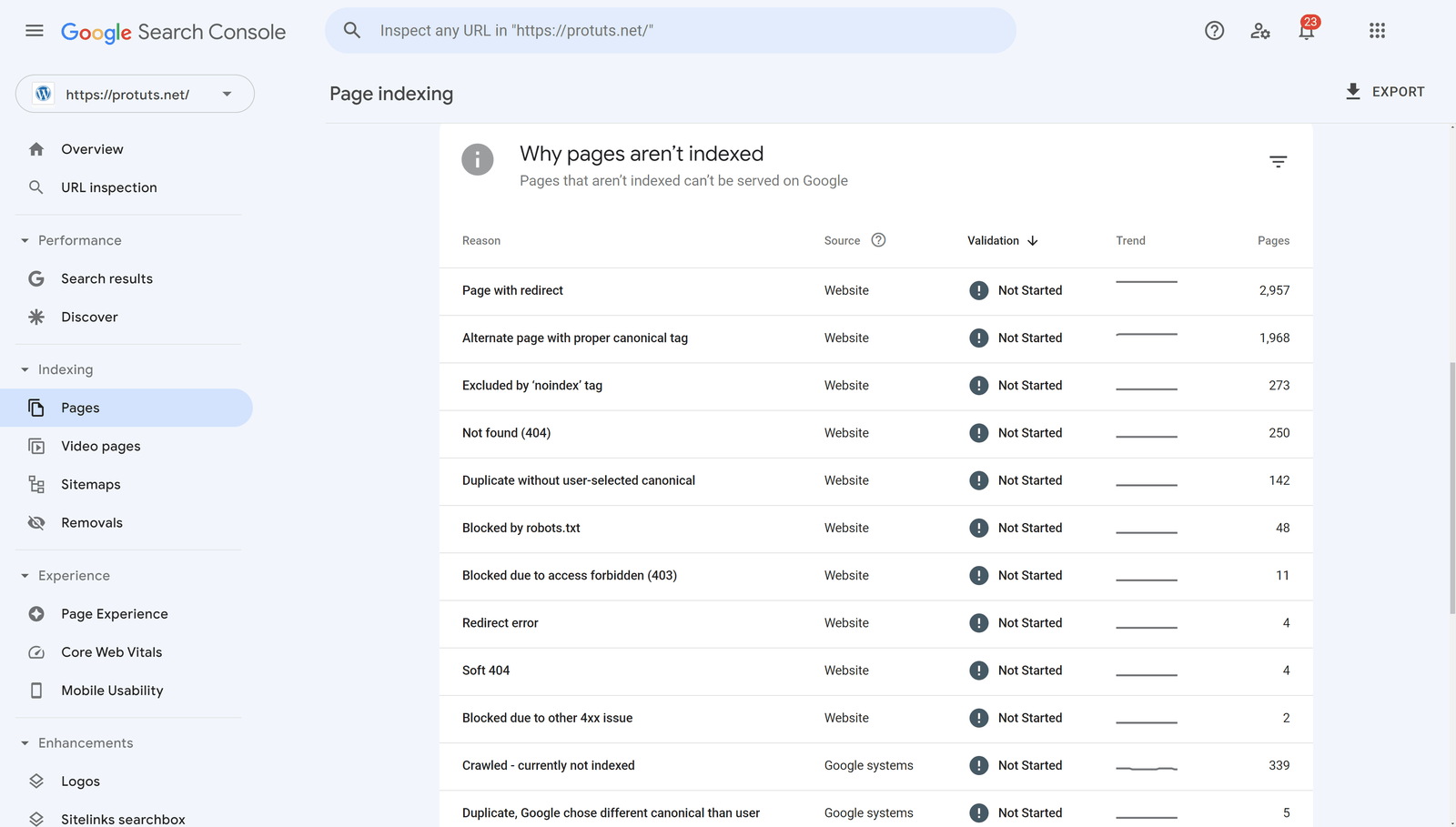
The indexing section shows which pages Google has indexed and which pages are excluded or affected by issues. Not every page needs to be indexed. Login pages, duplicate URLs, feeds, and low-value utility pages may be excluded by design.
The key question is whether your important pages are indexable and indexed.
Common reasons a page may not be indexed
- The page is new and has not been crawled yet.
- A noindex directive blocks indexing.
- The page redirects elsewhere.
- Google sees another URL as the canonical version.
- The page is discovered but not yet crawled.
- The page is crawled but not selected for indexing.
- The server or access rules block Googlebot.
Use the official Google crawling and indexing documentation when you need deeper technical details.
8. Use URL Inspection for Important Pages
The URL Inspection tool lets you check a specific URL. It can show whether the page is indexed, which canonical URL Google selected, and when it was last crawled.
Use it when a key page seems missing from search or after a major update. You can also request indexing, but this should not replace good internal linking and a clean sitemap.
Do not request indexing for every minor edit
Google will recrawl pages over time. Use manual requests for important new or changed pages. Constant requests do not create guaranteed rankings.
9. Submit and Monitor Your XML Sitemap
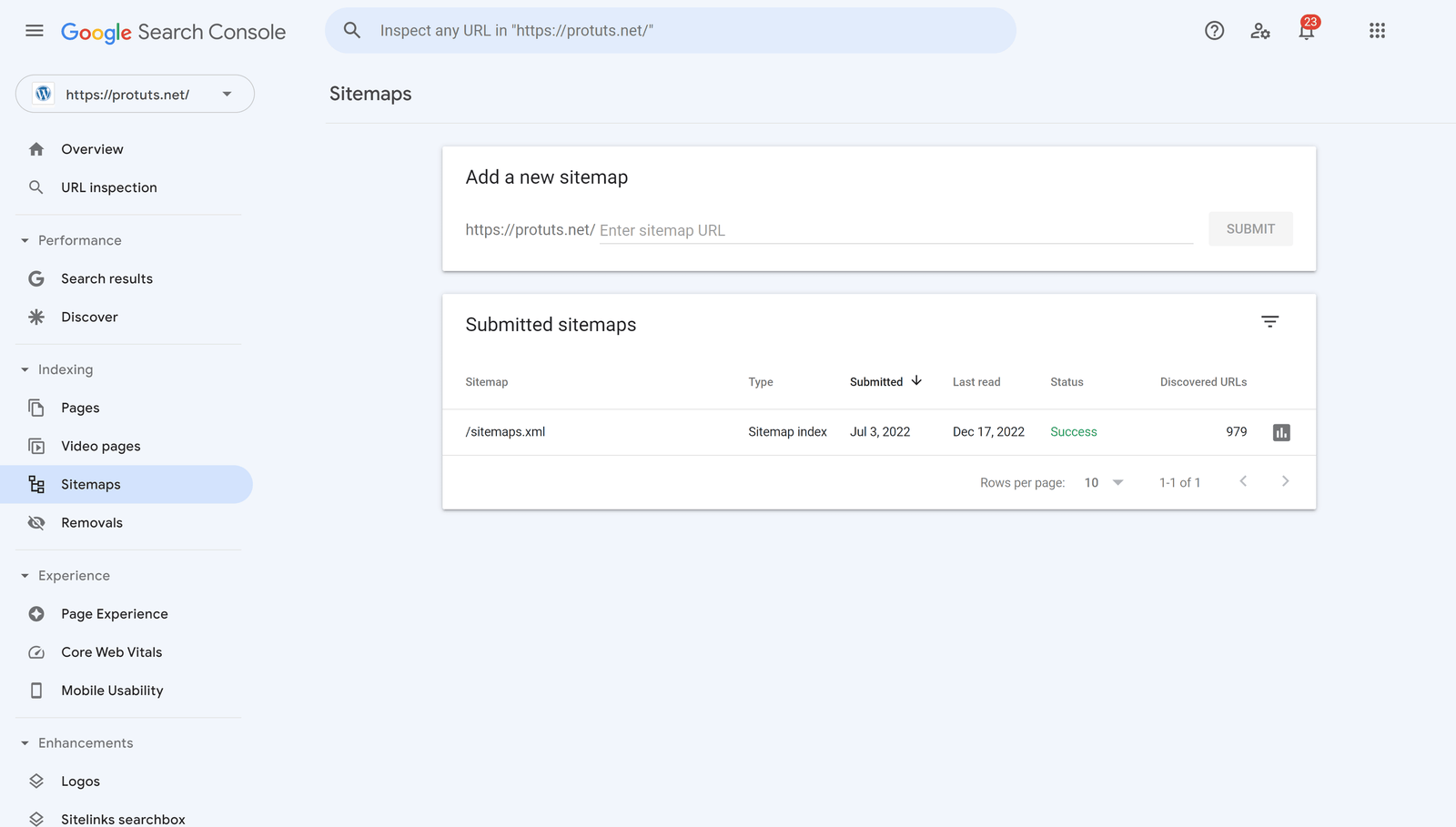
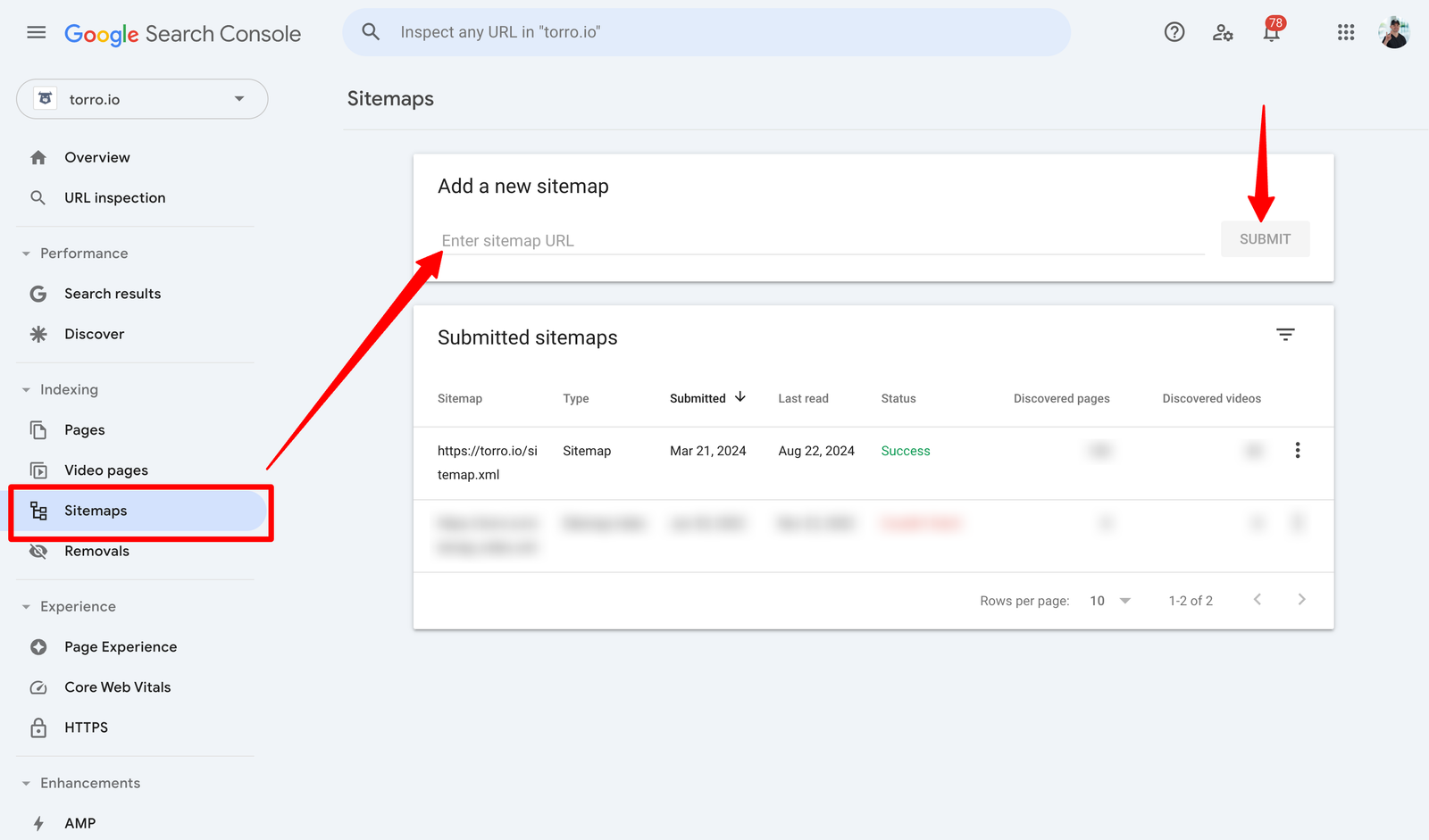
A sitemap helps search engines discover important URLs. Many WordPress SEO plugins create one automatically. Search Console lets you submit the sitemap and see whether Google can read it.
Check that the sitemap points to the current HTTPS version of the site and includes pages you actually want indexed. Remove broken or outdated sitemap references after migrations.
10. Understand Core Web Vitals Without Panic
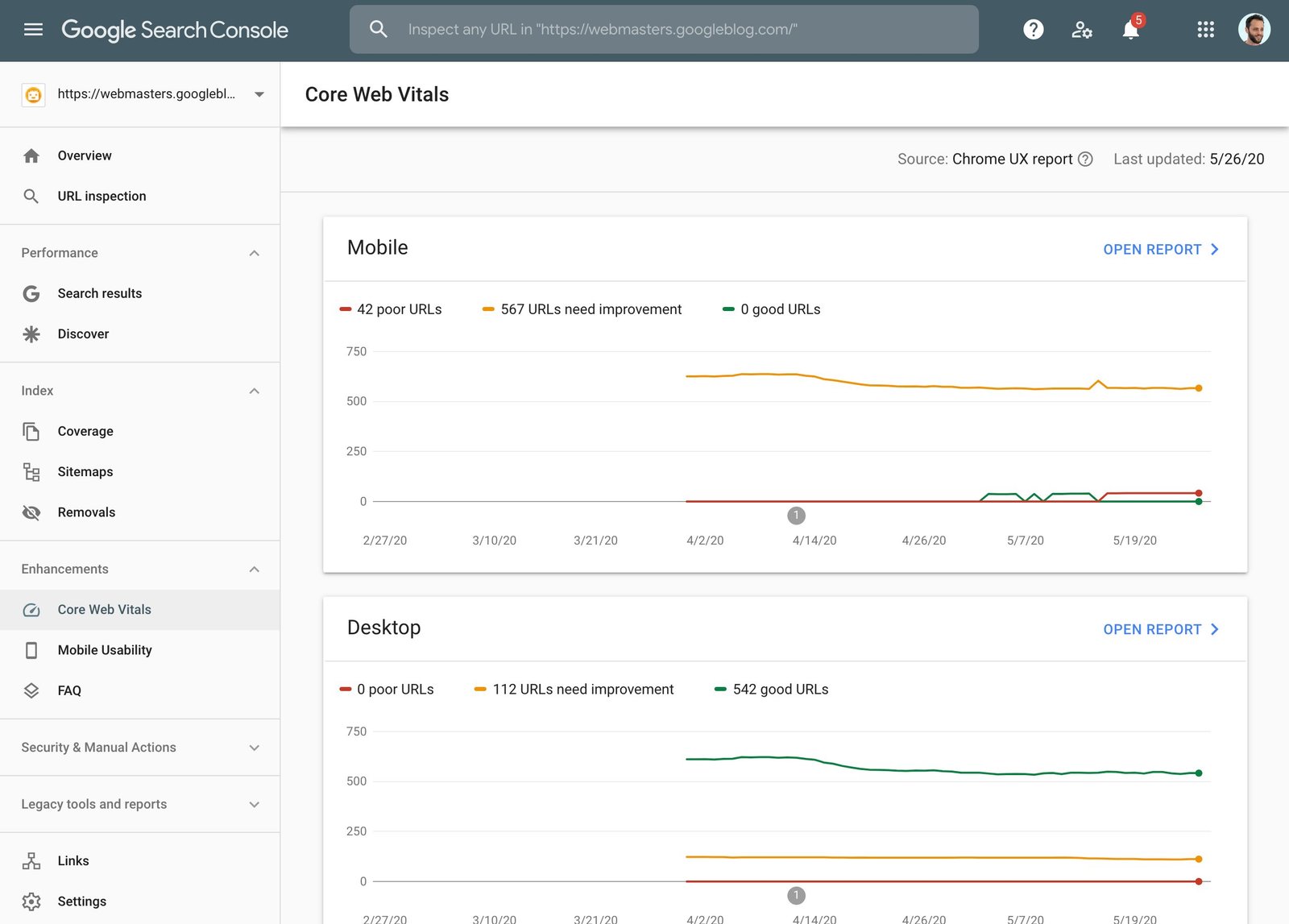
Search Console includes Core Web Vitals reports based on real-user data when enough data is available. These reports can help you spot groups of pages with poor loading, responsiveness, or visual stability.
Use PageSpeed Insights to inspect individual pages in more detail. Do not chase a perfect score while ignoring content or usability. Fix issues that affect real visitors first.
Practical speed priorities
- Compress large images.
- Reduce heavy scripts that are not needed.
- Use good hosting and caching.
- Avoid layout shifts caused by missing image dimensions.
- Test important pages on mobile.
11. Check Manual Actions and Security Issues
Search Console has reports for manual actions and security issues. These are important because they can affect trust and search visibility.
A manual action is not the same as a normal ranking drop. If Google reports one, read the reason carefully and fix the underlying issue before requesting review.
Security issues can include hacked content or harmful pages. If you see a warning, treat it as urgent. Protect users first, then restore the site and request review when appropriate.
12. Connect Search Console Data to Business Goals
Search Console tells you how people reach the site from Google. It does not tell the full story after the click. Pair it with your analytics or lead data.
Example
A plumbing company may see that a guide about leaking pipes gets many clicks. Analytics may show that visitors then move to an emergency repair page and submit a contact form. That makes the guide more valuable than a page that gets larger traffic but no useful next action.
Focus on search visibility that supports real goals such as calls, bookings, signups, store visits, or sales.
13. Find Content Refresh Opportunities
Search Console is excellent for finding older content that needs work. Compare recent performance with a previous period. Look for pages where clicks and impressions have dropped.
Before editing, ask why. The topic may be seasonal. Search demand may have changed. Competitors may have stronger answers. The page may contain outdated information. A title may no longer match how people search.
Update the page only after you understand the likely problem.
14. Find Low-Hanging SEO Opportunities
Look for queries where your page already gets impressions but sits just outside strong visibility. If the query fits the page, improve the section that answers it. Add a better example, FAQ, comparison, or step-by-step explanation.
This is often more efficient than publishing a brand-new article for every keyword.
Example
A post about Instagram content planning may get impressions for “how often should a small business post on Instagram.” Add a clear section that discusses practical posting frequency based on team capacity and audience response.
15. Do Not Obsess Over Daily Position Changes
Search positions move. One day of data does not prove a trend. Use 28-day or multi-month comparisons for most decisions.
Look at groups of signals together. Are impressions rising? Are clicks rising? Are more pages receiving traffic? Are important business queries improving? This gives a stronger view than watching one keyword every morning.
16. Create a Simple Weekly Search Console Routine
Every week
- Check for major indexing or security warnings.
- Review clicks and impressions.
- Look at the top queries and pages.
- Note any sudden changes worth investigating.
Every month
- Compare the last 28 days with the previous 28 days.
- Find pages with high impressions and weak clicks.
- Find older pages losing visibility.
- Check new pages for indexing.
- Review sitemap status.
- Choose one or two content improvements.
This routine keeps the tool useful without turning it into a daily distraction.
17. A Practical Decision Table
| What you see | What it may mean | What to check |
|---|---|---|
| High impressions, low clicks | Weak snippet or intent match | Title, description, query intent |
| Clicks falling on one page | Content or demand changed | Queries, competitors, freshness |
| Important page not indexed | Crawl or indexing issue | URL Inspection, robots, noindex, canonical |
| Mobile performance weak | UX or speed issue | PageSpeed, images, scripts, layout |
| New query appears often | New content opportunity | Improve existing page or create useful support content |
18. Common Beginner Mistakes
- Judging SEO from one day of data
- Trying to index every URL on the site
- Chasing average position without looking at clicks
- Ignoring branded versus non-branded queries
- Publishing new posts when an existing page only needs an update
- Assuming every excluded page is a problem
- Ignoring security or manual action reports
19. Questions to Ask Before Making an SEO Change
Search Console can show a pattern, but it does not always explain the cause. Before changing a page, ask:
- Did search demand change?
- Did the page lose impressions or only clicks?
- Did the title change recently?
- Is the page still accurate?
- Does the current content match the query?
- Is the page indexed and canonical?
- Did a technical issue affect the site?
These questions help you avoid random edits.
20. A 30-Minute Monthly Search Console Review
- Open Performance and compare the last 28 days with the prior period.
- Sort Pages by clicks and impressions.
- Note three pages with the biggest useful change.
- Open Queries for those pages.
- Check whether the query mix still matches the content.
- Inspect important new pages for indexing.
- Review sitemap and major warning reports.
- Choose one content update and one technical action.
This keeps your work focused. You leave the tool with specific actions instead of a long list of numbers.
Frequently Asked Questions
Is Google Search Console free?
Yes. Website owners can use it without paying for a subscription.
Is Search Console the same as Google Analytics?
No. Search Console focuses on Google Search visibility and technical search status. Analytics focuses more on user activity after visits reach the site.
How often should I check Search Console?
A weekly check and a deeper monthly review are enough for many small websites. Check sooner if you make a major site change or see a sudden problem.
Does submitting a sitemap guarantee indexing?
No. A sitemap helps discovery, but Google still decides whether a page should be indexed.
Can Search Console improve rankings by itself?
No. It provides data. Rankings improve when you use that data to make better content, technical, and user-experience decisions.
Conclusion
Google Search Console becomes useful when you stop treating it as a dashboard and start treating it as a decision tool. Check how people find you. Identify pages that deserve improvement. Make sure important URLs can be indexed. Watch for real technical warnings. Then connect search data to calls, leads, sales, or other business goals.
You do not need to master every report. Learn Performance, Queries, Pages, Indexing, URL Inspection, and Sitemaps first. Build a simple review routine. Over time, the patterns in your own data will tell you far more about your website than generic SEO advice can.